How to rename a Slack workspace
Learn how to rename a Slack workspace from the admin Settings & permissions page: open the name and URL settings, type a new name, and save your changes.
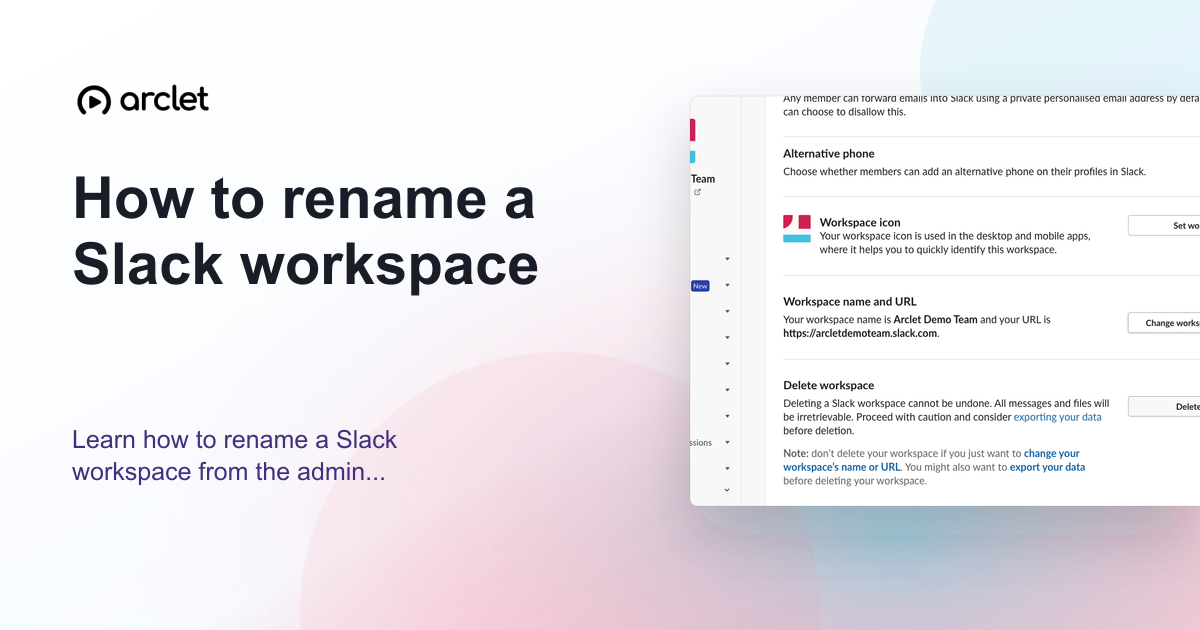
Quick answer
To rename a Slack workspace, open your workspace's admin Settings & permissions page and scroll to Workspace name and URL. Click Change workspace name and URL, type the new name in the Workspace name box, and click Save changes. The new name appears in menus and headings straight away.
Steps at a glance
- Open Settings & permissions in the workspace admin area.
- Scroll to Workspace name and URL.
- Click Change workspace name and URL.
- Type the new name in the Workspace name box.
- Click Save changes.
Interactive demo
Summary
Your workspace name shows in menus and headings across Slack. Renaming it takes one admin page and a single save.
Step-by-step guide
Step 1
Open the name and URL settings
In the workspace admin area, open Settings & permissions and scroll to Workspace name and URL. Click Change workspace name and URL.
Step 2
Enter the new workspace name
In the Workspace name box, replace the current name with the one you want. The page explains it is displayed in menus and headings. Leave the Workspace URL as it is unless you also want to change the web address.
Step 3
Save your changes
Click Save changes. You return to the settings page, and the new name, here Arclet Demo Team HQ, shows in the workspace heading.
Why this matters
Your team has outgrown its first workspace name, or the company has rebranded. Updating the name means everyone sees the right one in menus and headings, without you having to create a new workspace.
Frequently asked questions
Does the workspace name have to be the company name?
No. The page says the name will usually be, or include, the name of your company, but it is up to you.
Can I change the workspace URL at the same time?
The same page has a Workspace URL box that accepts lower-case letters, numbers and hyphens, and it asks you not to change it too often.
Related guides
Continue with more step-by-step guides for getting work done.
 How to add a description to a Slack channelAdd a description to a Slack channel so everyone knows what it is for. Open channel details, edit the Description on the About tab, and save it.
 How to archive a channel in SlackLearn how to archive a Slack channel from its details panel: open the Settings tab, choose Archive channel for everyone and confirm the prompt.
 How to create a Slack channelLearn how to create a Slack channel: open Add channels, name it, choose Public visibility, and select Create so your team has a focused place to talk.
 How to schedule a message in SlackSchedule a Slack message to send later: write it in the composer, pick a preset or custom time, then review it under Drafts & sent before it goes out.
 How to send a direct message in SlackLearn how to send a direct message in Slack: open a conversation from the sidebar, write your note, and send it to a teammate in a few quick clicks.
 How to set a reminder in SlackSet a reminder on any Slack message: open More actions, choose Add a reminder, pick a time such as In 1 hour, and Slack adds it to your to-dos.
Create interactive demos like this one — free, no coding required.
Start for free →