How to set default channels in a Slack workspace
Learn how to set default channels in Slack so new members are added automatically, from the workspace Settings & permissions page, in four quick steps.
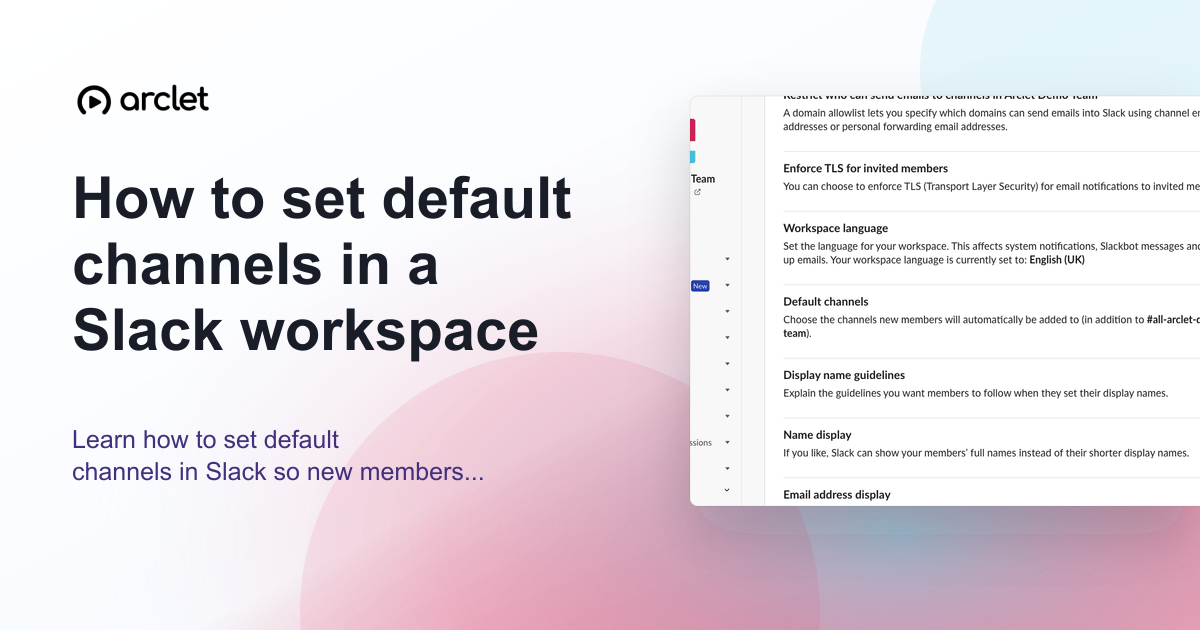
Quick answer
To set default channels in Slack, open your workspace Settings & permissions page and find Default channels on the Settings tab. Click Expand, type a channel name into the box, pick it from the list, then click Save. New members will automatically be added to every channel you chose.
Steps at a glance
- Open Settings & permissions for your workspace.
- Find Default channels on the Settings tab.
- Click Expand beside Default channels.
- Type a channel name and pick it from the list.
- Click Save to apply the change.
Interactive demo
Summary
Default channels are the channels new members join automatically when they arrive in your workspace. Setting them means everyone starts with the right context from day one.
Step-by-step guide
Step 1
Expand Default channels
In your workspace admin area, open Settings & permissions and stay on the Settings tab. Find Default channels, which explains that new members are added to the channels you choose. Click Expand beside it.
Step 2
Search for the channel
Click the box that appears under the description and type the name of the channel you want, for example demo-welcome. The channels already set as defaults appear as tags in the same box.
Step 3
Pick the channel from the list
Click the matching channel in the list that appears under the box. It is added as a new tag next to the existing default channels.
Step 4
Save your default channels
Click Save. Your new channel now appears alongside the other default channels, and new members will be added to all of them automatically.
Why this matters
You are growing a team and keep adding each new person to the same channels by hand. Setting default channels once means every newcomer lands in the right places immediately, and nobody misses announcements.
Frequently asked questions
Do default channels include the main channel?
The page says channels you choose are in addition to the main workspace channel, so you only add extra ones.
Can I choose which default channel new members land in first?
Yes. Below the box, a menu asks which default channel they should start in when they first join your workspace.
Related guides
Continue with more step-by-step guides for getting work done.
 How to add a description to a Slack channelAdd a description to a Slack channel so everyone knows what it is for. Open channel details, edit the Description on the About tab, and save it.
 How to archive a channel in SlackLearn how to archive a Slack channel from its details panel: open the Settings tab, choose Archive channel for everyone and confirm the prompt.
 How to create a Slack channelLearn how to create a Slack channel: open Add channels, name it, choose Public visibility, and select Create so your team has a focused place to talk.
 How to set your status in SlackSet a Slack status in a few clicks: open your profile menu, pick a preset like In a meeting, choose how long it lasts, and save it so teammates see it.
 How to turn on Do Not Disturb in SlackLearn how to turn on Do Not Disturb in Slack by pausing notifications from your profile menu for 30 minutes, 1 hour, 2 hours or longer.
 How to set up mention and keyword notifications in SlackLearn how to set up mention and keyword notifications in Slack by adding channel keywords in Preferences, so topics you care about get your attention.
Create interactive demos like this one — free, no coding required.
Start for free →