How to use the whiteboard in Zoom
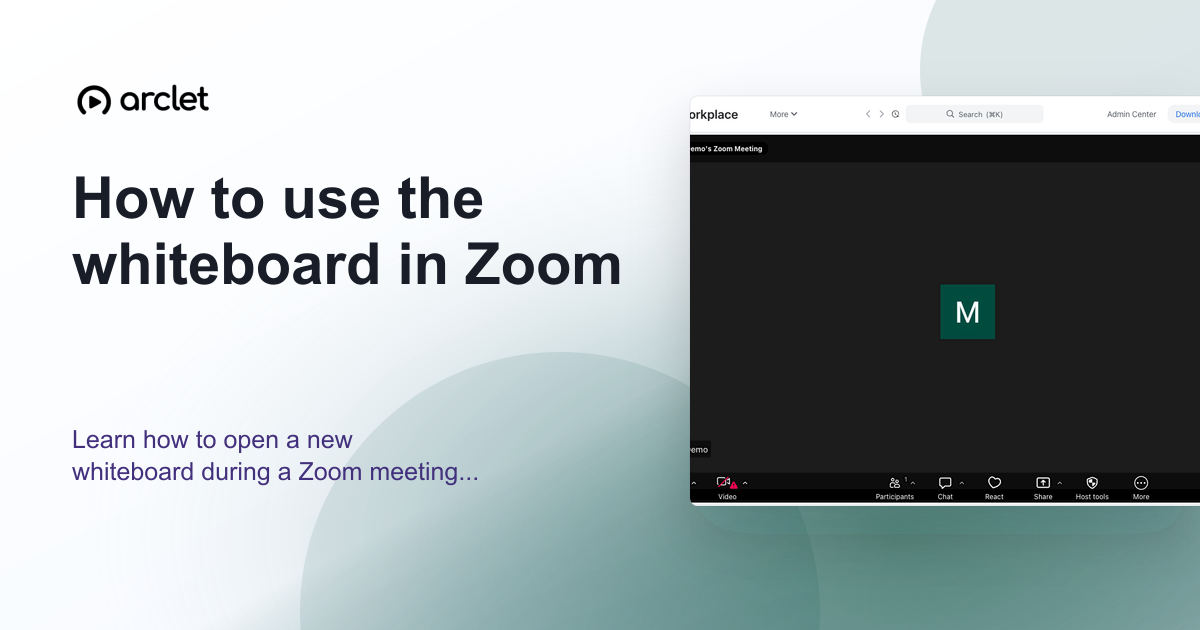
Learn how to open a new whiteboard during a Zoom meeting in your browser, find the sticky note tool, and add a note your whole meeting can see.
Quick answer
To use the whiteboard in Zoom, start your meeting, open the More menu in the toolbar, and choose Whiteboards. Select a new whiteboard and wait for it to load. Open the tools panel on the left, search for the sticky note tool, place a note on the canvas, and type your idea into it.
Steps at a glance
- Open the More menu in the meeting toolbar
- Choose Whiteboards from the menu
- Select a new whiteboard and wait for it to load
- Open the tools panel with the blue plus button
- Pick the sticky note tool
- Click the canvas and type on the note
Interactive demo
Summary
The Zoom whiteboard gives your meeting a shared canvas for ideas, notes and diagrams. You can start one from the meeting toolbar without leaving the call.
Step-by-step guide
Step 1
Open the More menu
Join or start your meeting, then move your pointer over the bottom toolbar. Click More at the right of the toolbar to open a small menu of extra meeting tools.
Step 2
Choose Whiteboards
In the More menu, click Whiteboards. A short menu opens above the toolbar with the whiteboard options.
Step 3
Create a new whiteboard
Click New whiteboard. Zoom loads the canvas, which can take a few seconds. When it is ready you see a dotted canvas with a toolbar on the left and the Share button at the top right.
Step 4
Open the whiteboard tools
Click the blue plus button on the left side of the canvas. A panel opens with tools such as Diagram and Drawing. Open the three-dot button below it to search for any other tool by name.
Step 5
Pick the sticky note tool
In the tools search box, type sticky. Click Sticky note in the results to select the tool, then click an empty spot on the canvas to place a note.
Step 6
Type on the sticky note
Click the new note and type your idea. Add more notes the same way to build up a list that everyone in the meeting can see.
Why this matters
You are running a quick brainstorm and talking is not enough. Opening a whiteboard lets you capture ideas on sticky notes as they come up, so the whole meeting works from one visible list instead of memory.
Frequently asked questions
Can I use the Zoom whiteboard in a browser meeting?
Yes. The steps in this guide were captured in a meeting joined from the browser, using the More menu in the meeting toolbar.
Where do I find more whiteboard tools?
Click the blue plus button on the left of the canvas for common tools, or open the three-dot button below it and search by name, as you do for the sticky note tool.
Related guides
Continue with more step-by-step guides for getting work done.
 How to host a Zoom meeting in a browserStart a Zoom meeting from the web portal without the desktop app. Pick Host, join from your browser, and skip the microphone and camera.
 How to use chat in a Zoom meetingLearn how to open the chat panel in a Zoom meeting, type a message and send it from your browser, without interrupting the call or unmuting.
 How to blur your background in ZoomLearn how to blur your background in Zoom from the browser: start a meeting, open the video options, and pick the Blur tile in the background picker.
 How to change your background on ZoomLearn how to change your background on Zoom from inside a meeting: open the camera menu, pick a preset virtual background, and close the settings.
 How to change your name on ZoomChange the display name other people see on Zoom from your web profile page. Open Profile, choose Edit, update the Display Name field, and save the change.
 How to create a recurring meeting in ZoomLearn how to create a recurring meeting in the Zoom web portal: schedule it, set a weekly repeat, save it and check every occurrence on the details page.
Create interactive demos like this one — free, no coding required.
Start for free →