How to use chat in a Zoom meeting
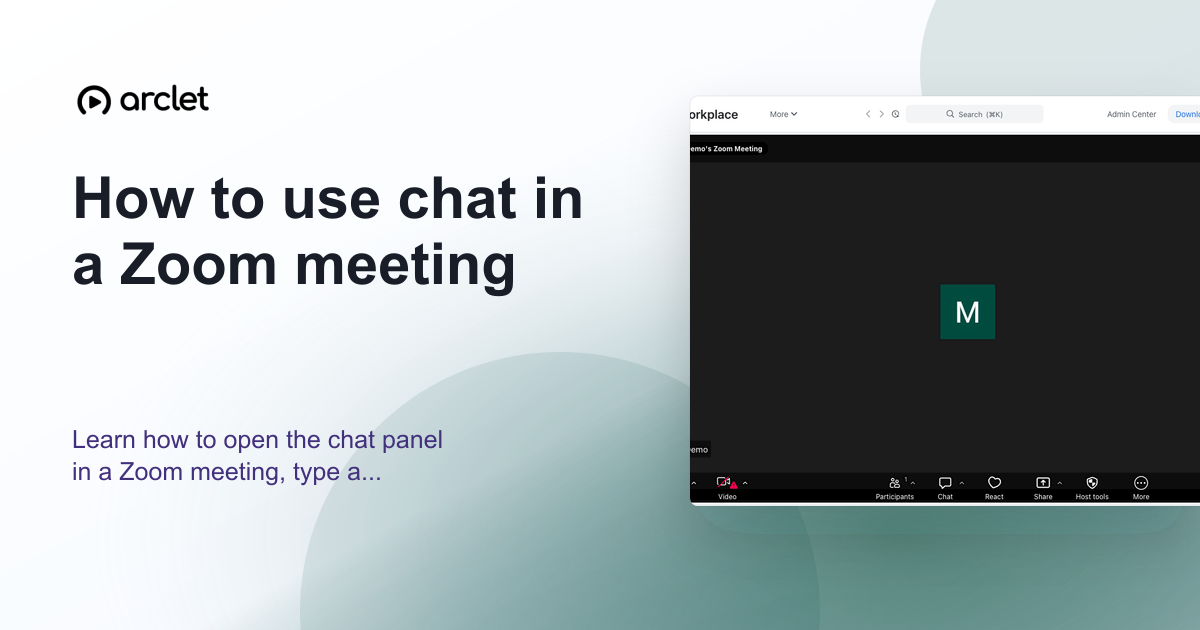
Learn how to open the chat panel in a Zoom meeting, type a message and send it from your browser, without interrupting the call or unmuting.
Quick answer
Open the Chat panel from the meeting toolbar, click the message box at the bottom of the panel, type your message, and send it with the send arrow. Chat sits alongside the video, so you can message people without interrupting the call or unmuting your microphone.
Steps at a glance
- Join or start your meeting
- Open the chat panel from the toolbar
- Click the message box
- Type your message
- Click the send arrow
Interactive demo
Summary
Meeting chat lets you share a quick note, a question or a reminder while the call carries on. It opens as a side panel next to the video, so nobody has to stop talking.
Step-by-step guide
Step 1
Open the chat panel
Move your pointer to the bottom of the meeting window so the toolbar appears, then click Chat. A chat panel opens on the right and the video shrinks to make room.
Step 2
Click the message box
At the bottom of the chat panel, click the message box. The cursor moves into the box and you can start writing.
Step 3
Type your message
Type what you want to say. Your text appears in the box as you type, ready to send.
Step 4
Send the message
Click the send arrow at the bottom right of the chat panel. Your message is posted to the chat.
Why this matters
You are mid-meeting and need to share a quick note without interrupting the speaker, or you cannot unmute. Chat lets you get your point across in a few seconds, and everyone sees it while the conversation carries on.
Frequently asked questions
Do I need a microphone or camera to use chat?
No. Chat worked in a browser meeting joined without a microphone or camera.
Where does the chat panel appear?
It opens as a side panel on the right of the meeting window, next to the video.
Related guides
Continue with more step-by-step guides for getting work done.
 How to host a Zoom meeting in a browserStart a Zoom meeting from the web portal without the desktop app. Pick Host, join from your browser, and skip the microphone and camera.
 How to raise your hand in ZoomRaise your hand in a Zoom meeting from the browser: open the reactions menu, pick the raise hand option, then lower it again once you have been heard.
 How to blur your background in ZoomLearn how to blur your background in Zoom from the browser: start a meeting, open the video options, and pick the Blur tile in the background picker.
 How to use the whiteboard in ZoomLearn how to open a new whiteboard during a Zoom meeting in your browser, find the sticky note tool, and add a note your whole meeting can see.
 How to change your background on ZoomLearn how to change your background on Zoom from inside a meeting: open the camera menu, pick a preset virtual background, and close the settings.
 How to change your name on ZoomChange the display name other people see on Zoom from your web profile page. Open Profile, choose Edit, update the Display Name field, and save the change.
Create interactive demos like this one — free, no coding required.
Start for free →