How to add fonts to Canva
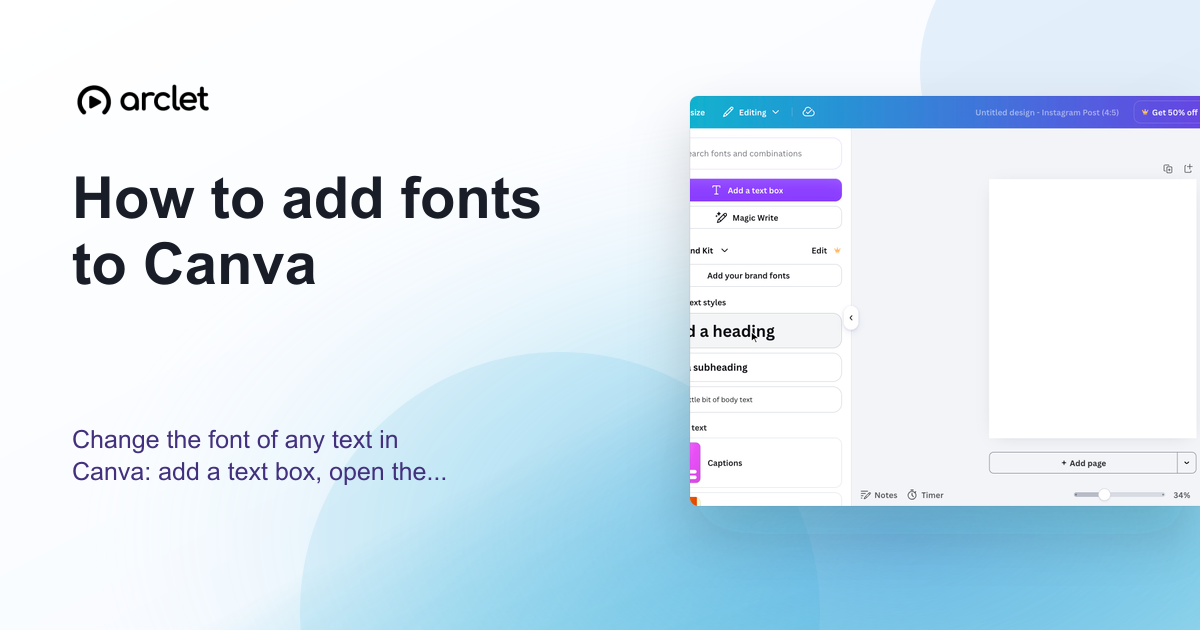
Change the font of any text in Canva: add a text box, open the font picker, search for a font such as Montserrat, and apply it in one click.
Quick answer
To change fonts in Canva, select a text box and click the font name in the toolbar above the page, which opens the Font panel. Type a font name into the search box, such as Montserrat, then click the result to apply it to your selected text. This uses the free fonts built into the editor.
Steps at a glance
- Open the Text tab and click Add a heading
- Select the text box on the page
- Click the font name in the toolbar
- Type a font name into the search box
- Click the font in the results to apply it
Interactive demo
Summary
Canva includes a library of fonts you can apply to any text box from the Font panel. Searching by name is the fastest way to find a specific typeface.
Step-by-step guide
Step 1
Add a text box to the page
Open the Text tab in the left sidebar and click Add a heading. A text box appears on the page and stays selected, so the formatting toolbar shows above it.
Step 2
Open the font picker
With the text box selected, click the font name in the toolbar above the page. It reads Canva Sans by default. The Font panel opens on the left with your document fonts, recommended fonts, and popular fonts.
Step 3
Search for a font
Click the search box at the top of the Font panel and type the name of the font you want, such as Montserrat. The panel switches to All results with matching fonts.
Step 4
Apply the font
Click the font name in the results. The selected text changes to that font straight away, and the toolbar shows the new font name in place of Canva Sans.
Why this matters
Your headline looks generic, and you know exactly which typeface your brand or inspiration uses. Searching for it by name in the Font panel lets you switch in seconds instead of scrolling through the whole library.
Frequently asked questions
Can I change the font of existing text?
Yes. Select the text box, click the font name in the toolbar, and choose a new font from the Font panel.
Does this guide cover uploading my own fonts?
No. It covers picking from the fonts already available in the Font panel.
Related guides
Continue with more step-by-step guides for getting work done.
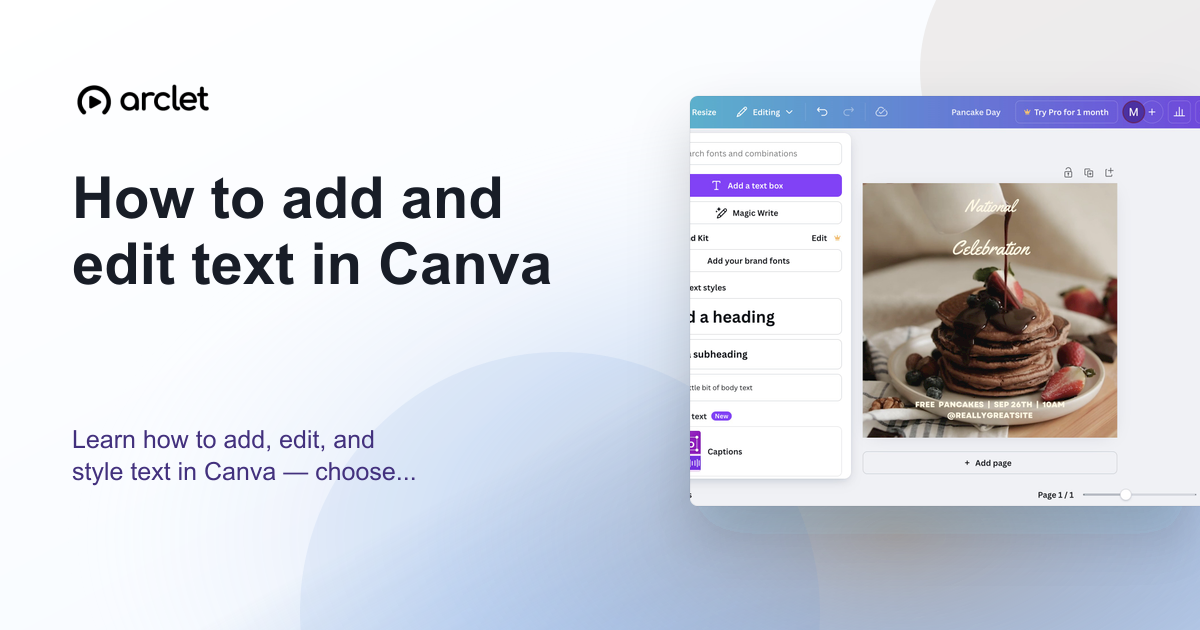 How to add and edit text in CanvaLearn how to add, edit, and style text in Canva — choose fonts, adjust size and spacing, and align text blocks in your design.
 How to add text to a design in CanvaAdd text to a Canva design: open a blank design, use the Text panel to insert a heading, type your own words, and style them with the toolbar.
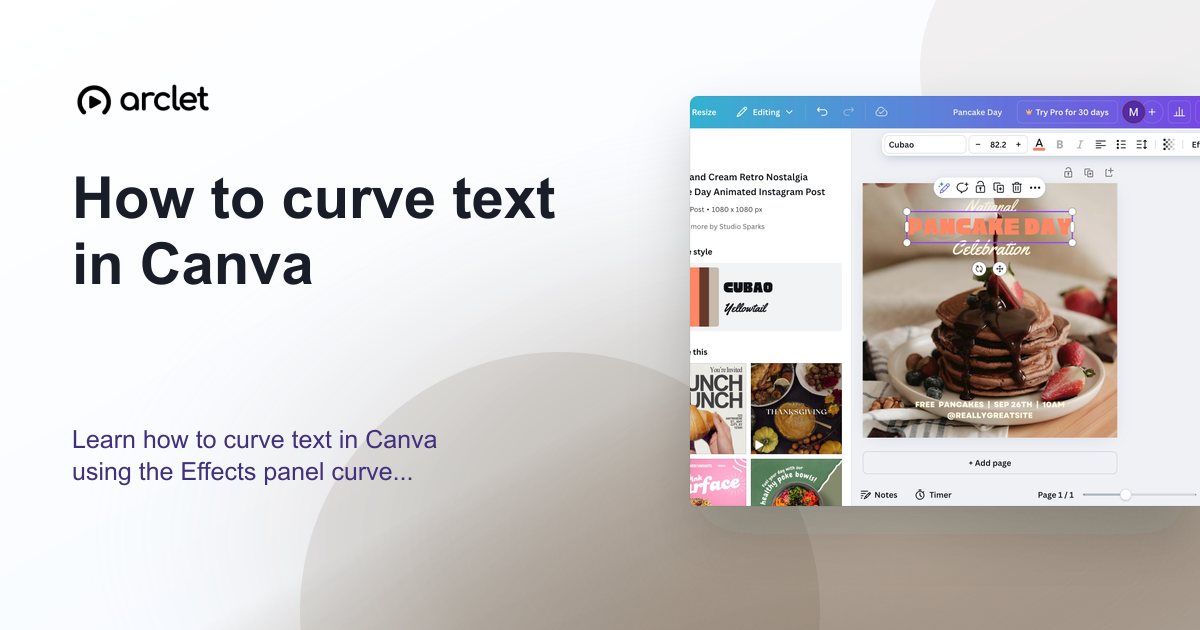 How to curve text in CanvaLearn how to curve text in Canva using the Effects panel curve slider — apply arc, bent, or wave styles to any text element.
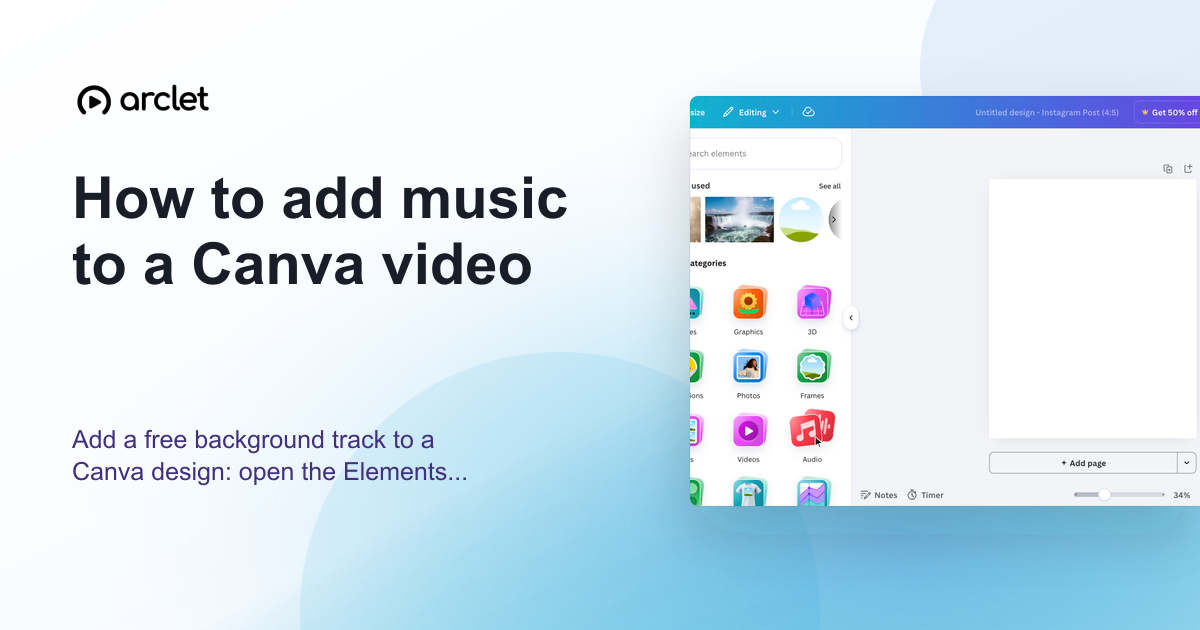 How to add music to a Canva Instagram postAdd a free music track to a Canva Instagram post: open the Elements tab, choose Audio, click a track without a crown, and find it on the timeline.
 How to add shapes in CanvaAdd a free shape to your Canva design from the Elements tab, then change its colour from the toolbar and resize it with the corner handles on the canvas.
 How to add a table in CanvaAdd a table to a Canva design from the Elements tab, type text into a cell, then use the cell menu to add a row. Free, step-by-step guide.
Create interactive demos like this one — free, no coding required.
Start for free →