How to use Canva for Instagram posts
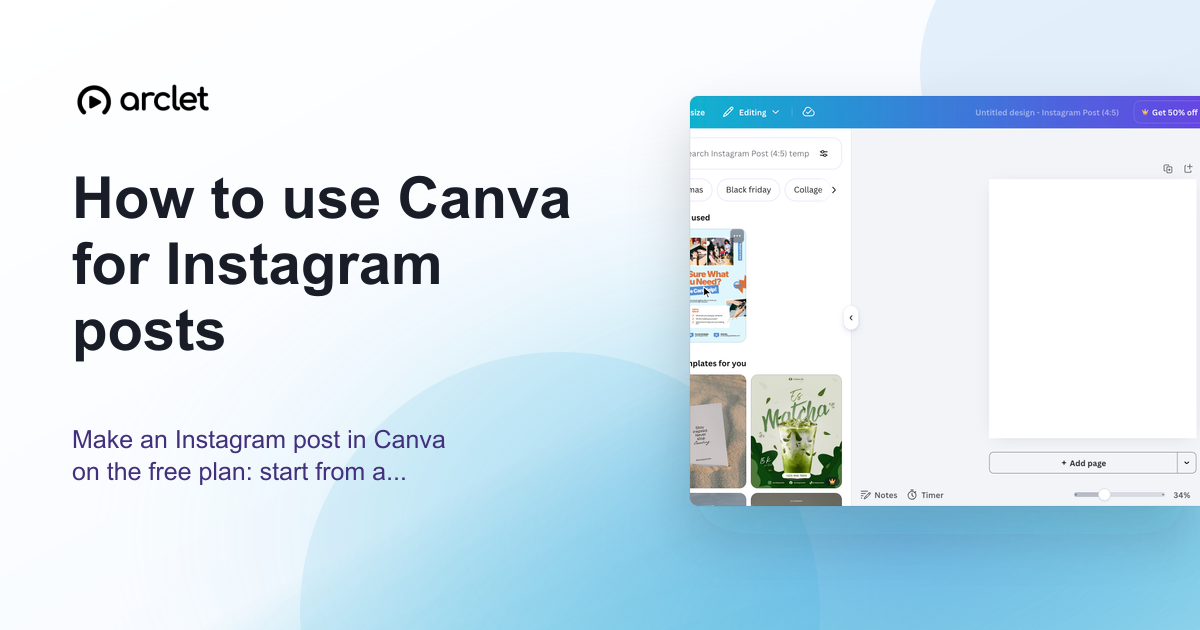
Make an Instagram post in Canva on the free plan: start from a template, edit the headline text, and open the Share menu to download your design.
Quick answer
To make an Instagram post in Canva, create an Instagram Post design, open the Templates panel, and pick a template without a crown badge. Click the headline and type your own text, then click Share and choose Download to save the finished post. The whole process takes only a few minutes on the free plan.
Steps at a glance
- Open a new Instagram post design in the editor
- Choose a free template from the Templates panel
- Click the headline on the canvas
- Type your own headline text
- Click Share in the top right
- Choose Download to save the post
Interactive demo
Summary
Canva's Instagram post designs start from a ready-made layout, so you edit text instead of designing from scratch. The Share menu's Download option gets the finished post out of Canva and ready to upload.
Step-by-step guide
Step 1
Pick a free Instagram post template
Open an Instagram Post design so the Templates panel shows templates sized for it. Scroll the list and choose one without a crown badge, since the crown marks Pro templates. Click its thumbnail to open the template page.
Step 2
Edit the headline text
The template is applied to your page. Click the headline on the canvas, then type your own text over it. The font, size, and colour of the original headline stay in place.
Step 3
Open the Share menu
When the post reads the way you want, click Share in the top right corner of the editor. A Share design panel opens with sharing options and a list of actions.
Step 4
Choose Download
In the Share design panel, click Download. Use it to save the finished Instagram post as an image file you can upload to your feed.
Why this matters
You need a post for tomorrow's feed and have no design skills or time. Starting from a free template and swapping the headline gets you a finished, on-brand-looking image in minutes, ready to download and upload.
Frequently asked questions
Can I use Canva for Instagram posts on the free plan?
Yes. Templates without a crown badge are free to use, and the Share menu includes a Download option.
What size is the Instagram post design?
The design in this guide is an Instagram Post (4:5) at 1080 x 1350 px.
Related guides
Continue with more step-by-step guides for getting work done.
 How to create a social media post in CanvaLearn how to create a social media post in Canva: open Create a design, choose Social media, pick Instagram Post, and edit a template headline.
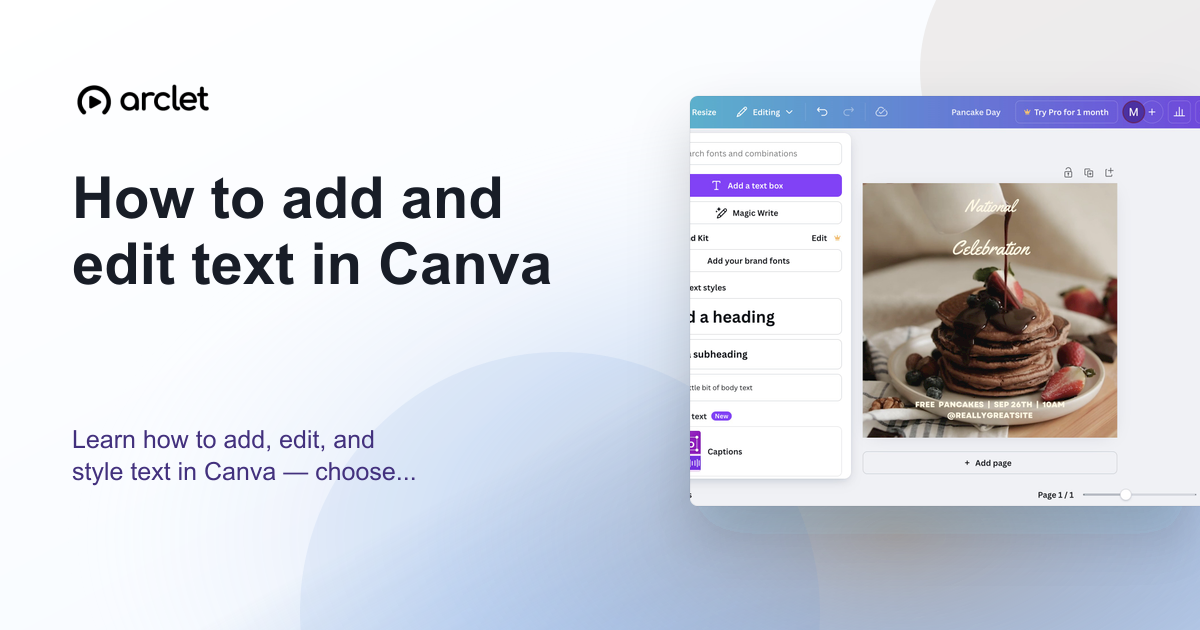 How to add and edit text in CanvaLearn how to add, edit, and style text in Canva — choose fonts, adjust size and spacing, and align text blocks in your design.
 How to save a design in CanvaSave a Canva design to your account: name it in the Design title box, press ⌘ + S or Ctrl + S to confirm All changes saved, then return to Home.
 How to use the video editor in CanvaCreate a Canva video design, add a free stock video from Elements, open the trim controls, add a text overlay and press Play to preview the clip.
 How to use Magic Design in CanvaDescribe a design to Canva AI in plain words, answer or skip its follow-up questions, and open the finished Instagram post in the editor.
 How to add a background in CanvaAdd a solid background colour to any Canva design: select the page, open the colour picker in the toolbar, pick a swatch, and close the panel.
Create interactive demos like this one — free, no coding required.
Start for free →