How to hide comments in Figma
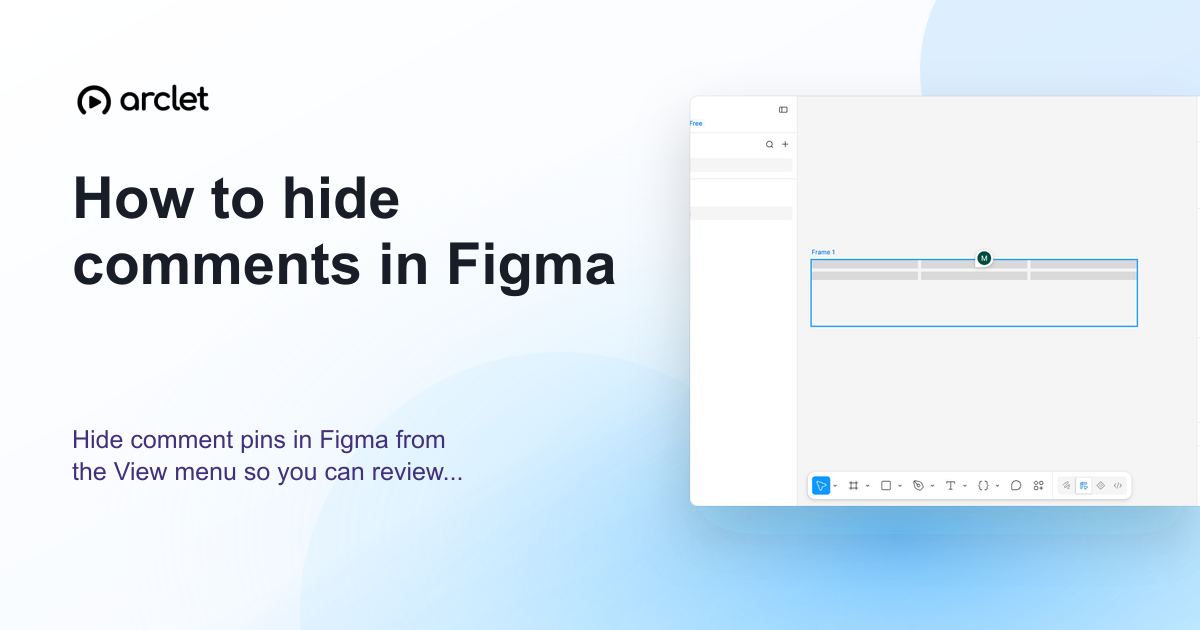
Hide comment pins in Figma from the View menu so you can review a design without markers on the canvas. Four short steps, no paid plan needed.
Quick answer
Open the main menu, hover View, and click Comments to turn the checkmark off. Figma hides the comment pins from the canvas, so you can see your design without markers. The Comments entry sits in the View submenu beside Annotations, so you can find it again later.
Steps at a glance
- Open the main menu.
- Hover View to open its submenu.
- Click Comments to turn it off.
- Look at the canvas.
- Confirm the comment pin is gone.
Interactive demo
Summary
Figma shows comment pins on top of your design. The View menu has a Comments toggle that hides them, so you can look at the clean canvas. It takes a few clicks from the main menu.
Step-by-step guide
Step 1
Open the main menu
Click the Figma menu button at the top left of the editor. The menu lists File, Edit, View and other entries. The comment pin is still on the canvas at this point.
Step 2
Open the View menu
Hover View in the main menu. A submenu opens beside it with display options such as Pixel grid, Rulers and Comments.
Step 3
Turn off Comments
Click Comments in the View submenu. A checkmark marks it while comments are visible, and clicking it turns comments off.
Step 4
Check the canvas
Look at the canvas after the menu closes. The comment pin that sat on the frame is gone, leaving only your design.
Why this matters
You are about to screenshot or present a design, and comment pins from earlier feedback sit on top of your frames. Hiding them gives you a clean canvas without touching the file's content.
Frequently asked questions
Why is Comments checked in the View menu?
A checkmark marks Comments while comment pins are visible on the canvas. Click the entry to turn it off.
Where is the Comments option?
It is in the main menu under View, between Show slices and Annotations.
Related guides
Continue with more step-by-step guides for getting work done.
 How to add a comment in FigmaAdd a comment in Figma by choosing the Comment tool, clicking the canvas, typing your note, and sending it. Four steps, free plan, no setup needed.
 How to add a color style in FigmaLearn how to add a color style in Figma: open Styles in the Design panel, create a new color style, name it, set a hex value, and find it listed.
 How to add a prototype link in FigmaLink a button to another frame in Figma. Open the Prototype tab, drag a connection to your destination frame, and set up a click interaction.
 How to make a button in FigmaLearn how to make a button in Figma: draw a rectangle, round its corners, add a text label, and group both layers into a frame in a free file.
 How to navigate in FigmaLearn how to navigate in Figma: open the zoom menu, zoom in, zoom to fit the whole design, and select a layer in the Layers panel to jump to it.
 How to present a prototype in FigmaLearn how to present a prototype in Figma: open the Prototype tab, click Present, step through your frames, and close the preview when you finish.
Create interactive demos like this one — free, no coding required.
Start for free →