How to use breakout rooms in Zoom
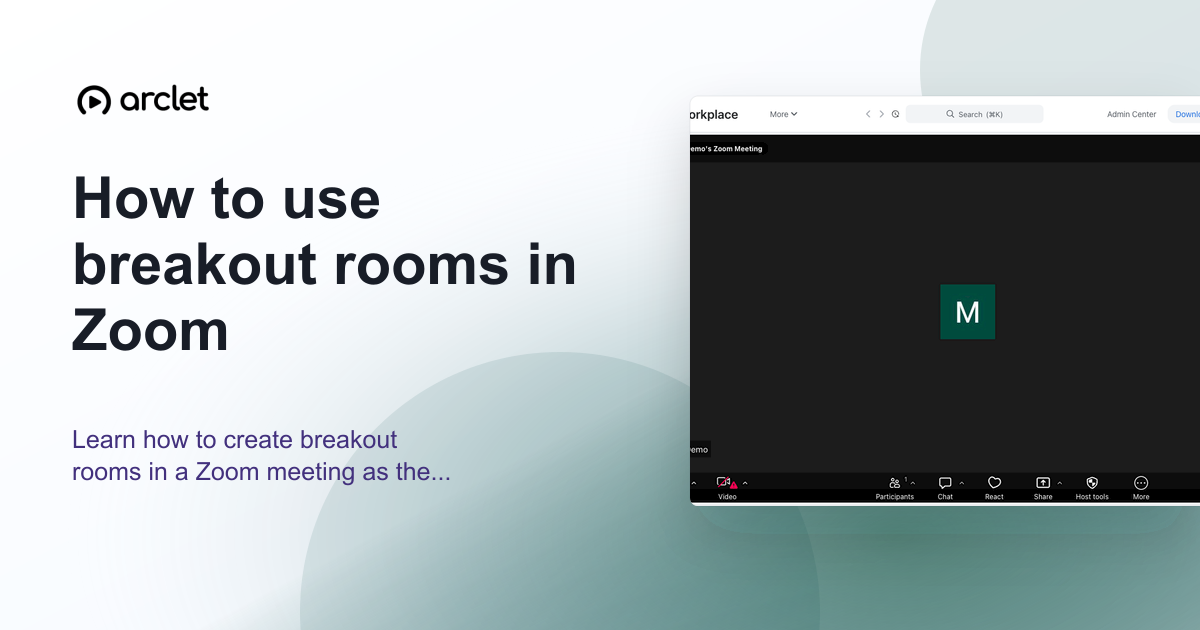
Learn how to create breakout rooms in a Zoom meeting as the host: open the More menu, pick how to assign people, create the rooms and open them when ready.
Quick answer
As the host of a Zoom meeting, open the More menu in the toolbar and choose Breakout Rooms. Pick how many rooms you want and whether Zoom assigns people automatically, then select Create. Review the room list that appears, and open the rooms once your participants have joined the meeting.
Steps at a glance
- Open the More menu in the meeting toolbar
- Choose Breakout Rooms
- Set the number of rooms and the assignment method
- Create the rooms
- Review the room list
- Open all rooms when participants have joined
Interactive demo
Summary
Breakout rooms split a Zoom meeting into smaller groups for discussion. The host creates the rooms from the meeting toolbar, then opens them when everyone is ready. It works well for workshops, training and team exercises.
Step-by-step guide
Step 1
Open the More menu
Move your pointer over the bottom of the meeting window to show the toolbar, then select More. A small menu of extra meeting options opens above it. Only the host sees the Breakout Rooms option.
Step 2
Choose Breakout Rooms
Select Breakout Rooms in the More menu. A dialog opens where you set up the rooms for this meeting.
Step 3
Choose how to assign participants
Set how many rooms you want using the number box at the top of the dialog. Then pick Assign automatically so Zoom splits people evenly, Assign manually to place each person yourself, or Let participants choose room. The dialog shows the participants per room as you change the number.
Step 4
Create the rooms
Select Create. Zoom builds the rooms but does not start them yet, so nobody moves until you say so.
Step 5
Start the rooms when you are ready
The Breakout Rooms panel lists each room with its participant count, along with Recreate, Add Room and Open All Rooms. Select Open All Rooms to send people to their rooms. In this capture the host was alone in the meeting, so the room was empty; participants are assigned once they join.
Why this matters
You are running a workshop and want small groups to discuss a topic on their own before regrouping. Setting up rooms ahead of time means you spend the session facilitating instead of sorting people into groups by hand.
Frequently asked questions
Can I choose which room each person goes to?
Yes. The create dialog offers Assign manually as well as Assign automatically.
Do the rooms start as soon as I create them?
No. After you create the rooms the panel shows Breakout Rooms - Not Started, and the rooms open when you select Open All Rooms.
Related guides
Continue with more step-by-step guides for getting work done.
 How to host a Zoom meeting in a browserStart a Zoom meeting from the web portal without the desktop app. Pick Host, join from your browser, and skip the microphone and camera.
 How to use chat in a Zoom meetingLearn how to open the chat panel in a Zoom meeting, type a message and send it from your browser, without interrupting the call or unmuting.
 How to blur your background in ZoomLearn how to blur your background in Zoom from the browser: start a meeting, open the video options, and pick the Blur tile in the background picker.
 How to use the whiteboard in ZoomLearn how to open a new whiteboard during a Zoom meeting in your browser, find the sticky note tool, and add a note your whole meeting can see.
 How to change your background on ZoomLearn how to change your background on Zoom from inside a meeting: open the camera menu, pick a preset virtual background, and close the settings.
 How to change your name on ZoomChange the display name other people see on Zoom from your web profile page. Open Profile, choose Edit, update the Display Name field, and save the change.
Create interactive demos like this one — free, no coding required.
Start for free →