How to turn on captions in Zoom
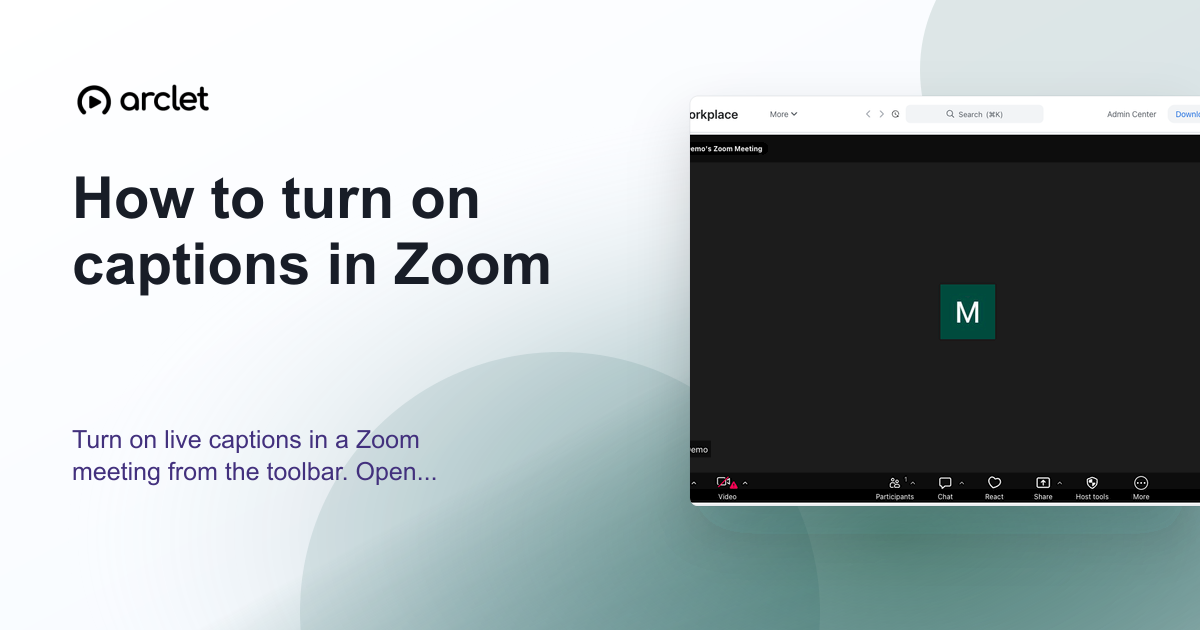
Turn on live captions in a Zoom meeting from the toolbar. Open the More menu, choose Show Captions, pick a caption language and confirm it in a few clicks.
Quick answer
To turn on captions in a Zoom meeting, open the More menu in the meeting toolbar and choose Show Captions. Zoom asks which language captions should use for everyone, so confirm the language and save it. A short message then tells you captions are on and the toolbar shows the setting.
Steps at a glance
- Join or start a Zoom meeting
- Open the More menu in the toolbar
- Choose Show Captions from the menu
- Check the caption language is correct
- Save the language to start captions
- Look for the message that captions are on
Interactive demo
Summary
Zoom captions put the spoken words on screen as text during a meeting. You turn them on from the meeting toolbar and pick one caption language for the meeting. They help people follow along in noisy places or when they cannot play audio.
Step-by-step guide
Step 1
Open the More menu
Start or join a meeting and move your pointer to the bottom of the meeting window so the toolbar appears. Select More at the right of the toolbar to open a small menu of extra meeting tools.
Step 2
Choose Show Captions
In the menu that opens above the toolbar, select the captions option at the top left. The menu also lists breakout rooms, whiteboards, settings and a stop incoming video option, but only the captions option is needed here.
Step 3
Save the caption language
A window asks you to set the caption language for this meeting and notes that captions appear in that language for everyone. English is already selected, so check it is the language you want and select Save.
Step 4
Check that captions are on
A message appears at the bottom of the meeting window saying captions are on. Spoken words then appear there as text, and the toolbar now has a captions control next to More.
Why this matters
You are in a meeting where someone is hard to hear, or a colleague prefers to read along. Turning on captions takes seconds and puts the conversation on screen as text, so nobody has to ask the speaker to repeat themselves.
Frequently asked questions
Do captions change for everyone in the meeting?
The language you set applies to everyone, as the window explains when you choose the captions option.
Which language can I pick?
English was preselected in this meeting. The window has a drop-down so you can check the language before you save.
Related guides
Continue with more step-by-step guides for getting work done.
 How to host a Zoom meeting in a browserStart a Zoom meeting from the web portal without the desktop app. Pick Host, join from your browser, and skip the microphone and camera.
 How to use chat in a Zoom meetingLearn how to open the chat panel in a Zoom meeting, type a message and send it from your browser, without interrupting the call or unmuting.
 How to blur your background in ZoomLearn how to blur your background in Zoom from the browser: start a meeting, open the video options, and pick the Blur tile in the background picker.
 How to use breakout rooms in ZoomLearn how to create breakout rooms in a Zoom meeting as the host: open the More menu, pick how to assign people, create the rooms and open them when ready.
 How to use the whiteboard in ZoomLearn how to open a new whiteboard during a Zoom meeting in your browser, find the sticky note tool, and add a note your whole meeting can see.
 How to change your background on ZoomLearn how to change your background on Zoom from inside a meeting: open the camera menu, pick a preset virtual background, and close the settings.
Create interactive demos like this one — free, no coding required.
Start for free →